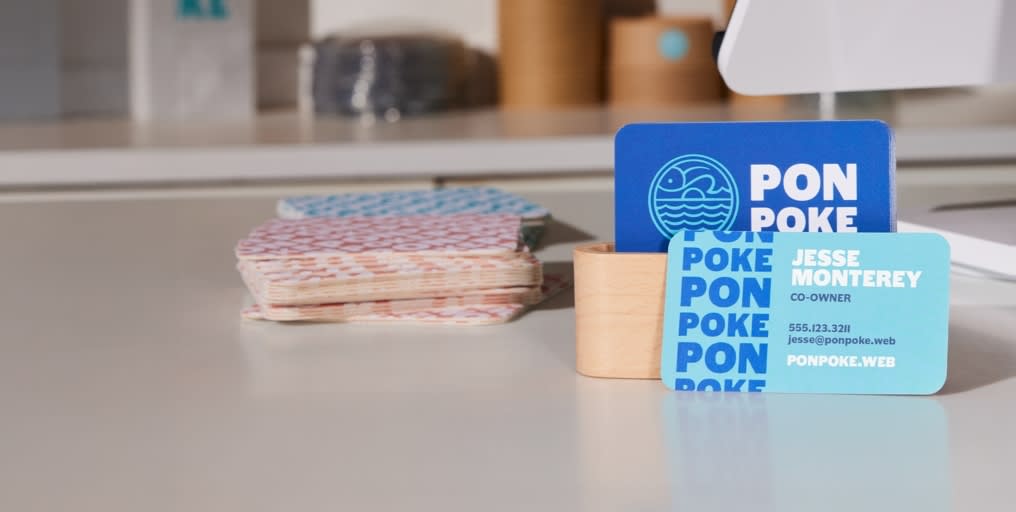
Updating business cards doesn’t have to be complicated. Whether you’re changing the role, adding social media profiles or tweaking branding, an editable PDF business card template is something you can make once and return to as many times as you need, without needing to hire a designer. This guide will walk you through everything from choosing dimensions to making edits and printing with VistaPrint. By the end, you’ll have a professional printable PDF business card template that’s flexible, polished and ready whenever you need it!
- Editable PDF business card templates save time, cut costs and keep branding consistent.
- Business card PDF templates are perfect for small businesses, freelancers, multi-location brands and marketers.
- You can make a downloadable PDF business card template using VistaCreate’s easy-to-use editor.
- Standard business card dimensions are 3.5” x 2” (US), 85 x 55 mm (European) or 2.5” x 2.5” (square).
- Once you make a printable PDF business card template, you can edit it in VistaCreate, Adobe Acrobat or with free tools like Sejda and PDFescape.

If you’re wondering whether to make a PDF business card template, consider the benefits:
- Cost efficiency: No need to pay a designer for every update. With a PDF template, you can tweak essential business card information like names, roles or contact details without any extra cost.
- Brand consistency: No more mismatched fonts or colors. A standardized PDF template ensures every card looks polished and on-brand.
- Flexibility: New employee? Role change? Just open the PDF file and edit – no design tools required.
- Print-ready: Making a printable PDF business card template ensures compatibility with professional printing services like VistaPrint, streamlining the printing process.
Who benefits the most from a PDF template for their business cards?
- Small businesses with high turnover: Update business cards easily without redesigning from scratch.
- Entrepreneurs and freelancers: Experiment with styles and variations by yourself.
- Multi-location businesses: Maintain consistent branding across teams, franchises or departments.
- Marketers and campaign managers: Create new designs for events, promotions and audiences.
How to make a professional-looking PDF business card template: Step-by-step
When it comes to creating a business card PDF template, you can either DIY using design software, use VistaPrint’s Design Services or hire a designer (just be sure to give them a clear brief, provide necessary business details and branding elements – logo, colors, fonts – and request the PDF template).

But you don’t need a professional designer to make a PDF template that looks polished and professional. If you can use drag-and-drop interfaces, VistaCreate lets you create a PDF business card template for free.
The process is simple: design in VistaCreate → export as a PDF → customize and print with VistaPrint.
- Choose your business card dimensions, size and orientation in VistaCreate.
- Create your design from scratch or customize a ready-made template.
- Export it as a PDF Print file to save a high-resolution version for future use.
- Upload it to VistaPrint to customize and print your business cards.
Step 1: Choose the right business card dimensions
Go to VistaCreate’s Business Card Maker and pick a canvas size. Standard formats ensure your design fits common cardholders and printing specs:
- US business card size (standard): 3.5” x 2”
- European business card size: 85 x 55 mm
- Square business card: 2.5” x 2.5”

Choose your business card size via VistaCreate
At this stage, you can also pick the orientation of your business card: horizontal or vertical.
Step 2: Create your business card design
You can either start designing from scratch or customize a VistaCreate business card design template.
Read our guide on how to design a business card and explore these unique business card ideas.

Browse over 200,000 business card templates via VistaCreate
The platform’s easy-to-use tools and drag-and-drop functionality make designing easy:
- Text and font tools: Add your brand fonts or pick from typefaces.
- Color palettes: Stay on-brand with custom business card color schemes.
- Logo and graphics: Upload your logo or use VistaCreate’s library of icons.
- Grid and alignment tools: Keep business card layouts clean and professional.
- Editable text fields: Ensure key details like names and emails can be updated later.
Customize your business card template via VistaCreate
Follow these business card design rules and tips:
- Keep it simple: Too much clutter makes business cards hard to read.
- Use high-contrast colors: Ensure readability, especially for small text.
- Stick to standard margins: Leave space around the edges for trimming.
- Prioritize legibility: Choose fonts that are easy to read at smaller sizes.
Step 3: Save your design as a PDF file
Once your design is ready, save it in the right format for future edits and printing:
1. Click Export in VistaCreate
Easily export your customized business card template in VistaCreate
2. Select PDF Print for high-resolution output
Save your business card template as an editable PDF
3. Check you left blank spaces to keep your business card PDF flexible for future customizations
4. Save the downloadable PDF business card template, and you’re ready to print or update as needed
How to use your business card PDF templates
You’ve designed your editable PDF business card template – now what? Whether you need to tweak details or send it off for printing, here’s how to put your template to good use.
Editing and customizing your PDF template
Your saved template stays in VistaCreate, so you can revisit it anytime for updates. If you need to make quick edits without starting from scratch, open the file in a PDF editor like Adobe Acrobat.
No paid access to Acrobat? No problem. You can edit your design directly in VistaCreate or make last-minute tweaks in the VistaPrint editor before ordering.
Print your business cards with VistaPrint
Once you’ve created your business card PDF template, printing with VistaPrint is quick and seamless:
1. Choose a design from the business card template gallery.

Choose a VistaPrint business card template
2. Remove all design elements from the template: background, text and design elements
Create a blank canvas in the VistaPrint business card editor
3. Upload your editable PDF business card template

Upload your custom template to the VistaPrint business card editor
4. Customize the business card, inserting text fields for name, title and contact info

Customize your business card template in the VistaPrint editor
5. Include a QR code (optional) to make your card interactive
6. Prepare for print – select the business card paper type, finish and quantity (choose premium business card paper stocks and finishes for a higher-quality professional print)
Now your customized business card is ready to print
Ready to print business cards from your business card PDF template?
You’ve got the tools, the know-how and a downloadable PDF business card template that makes updates quick and easy. PDF template creation puts you in control, ensuring every card is polished and professional. When you’re ready to print, just upload your PDF template, edit the details and choose the finish. No hassle, just high-quality business cards.
PDF business card template FAQs
What size should my business card PDF be?
In the US, the standard business card size is 3.5” x 2”. In Europe, it’s typically 85 x 55 mm. Always add bleed (usually 0.125” or 3 mm on all sides) to avoid white edges after cutting.
What’s the difference between bleed, trim and safe zones?
Bleed is the space (0.125” or 3 mm) beyond the trim line that prevents unwanted white edges, the trim line shows where your business card will be cut and the safety zone is the area (about 0.125 in from the trim line) that prevents important details and content from being cut off.
Can I use my business card template for other projects?
Absolutely! Your editable PDF template can be repurposed for name tags, loyalty cards, appointment reminders or anything that needs a polished, branded look. Just change the text, and you’re good to go.
What file format works best for printing business cards?
For professional printing, a high-resolution PDF with embedded fonts and images ensures crisp printing. Always save the file as an editable PDF so you can update text and details without losing quality.
How do I ensure my business card PDF is print-ready?
Before printing, double-check print resolution (at least 300 DPI), use CMYK color mode (not RGB) for accurate colors, set bleed and safe zones correctly, embed or outline fonts to avoid shifts and save as a print-ready PDF with no layers or transparency issues. If you’re printing with VistaPrint, just upload your PDF, and we’ll guide you through the rest.

