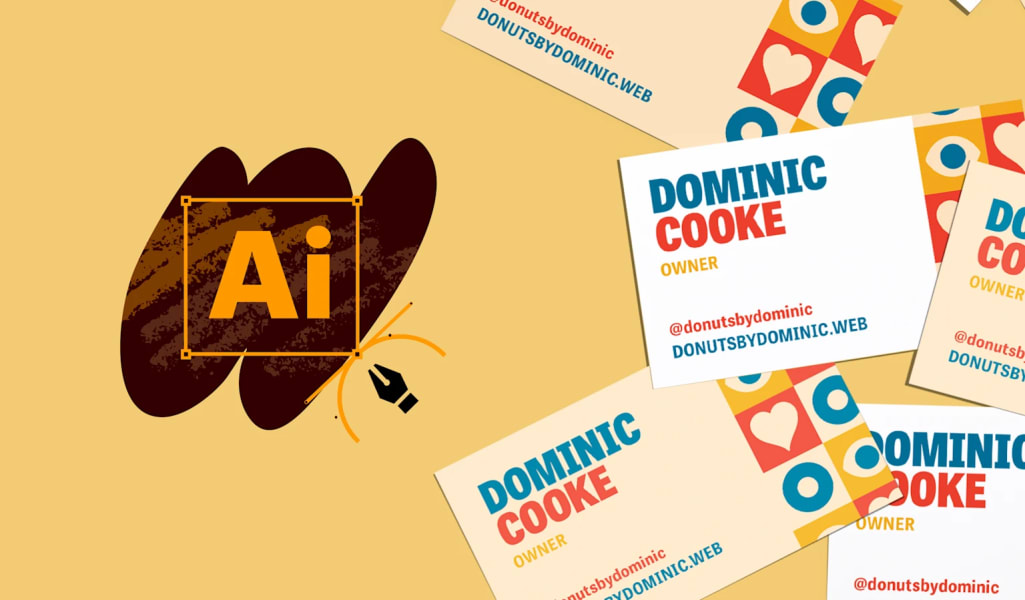
Even in a digital world, business cards are essential for networking, creating meaningful relationships and promoting small businesses. And the good news: they’re easy to make using Adobe Illustrator or other more affordable design tools like VistaCreate and VistaPrint. Whatever design software you use, this article will help you design and print business cards that work for your business.
Read our step-by-step guide below to walk through how to design business cards in Illustrator and ensure your card leaves an impression for all the right reasons.
- Keep your business card simple and readable – prioritize your logo, contact details and other essential information.
- Choose the right card size, paper stock and finish for your brand before building the design.
- In Illustrator, set up your artboard for print using the correct dimensions, CMYK color, 300 ppi raster effects and clear bleed, trim and safe-area guides.
- Keep text and key elements inside the safe area, extend backgrounds beyond the bleed and use vector files for logos where possible.
- Before printing, convert fonts to outlines and export your finished business card as a high-quality PDF.
The fundamentals of business card design
Your business cards are often the first impression potential customers or partners have of your brand. A well-designed card should pass on essential information about your business, look appealing and communicate your brand identity.
What makes a good business card? Learn how to design a business card and follow the 10 golden rules for business card design.

What to include on a business card
Ask yourself what you want your business card to communicate. Do you need your business cards to increase brand awareness, direct clients to your website or simply communicate your contact details? The best business cards are often the simplest, so decide what you want your business card to achieve and prioritize that in your card design.
Choose a template and layout that delivers your main messages. Important information should jump off the card thanks to font size, weight and positioning. But think of the card as a whole – does the eye flow naturally across the content?
Your business card layout should be uncluttered but clearly display the following.
- Your logo: The crown jewel of your visual branding
- Contact information: Name, email and telephone number so people can get in touch
- Your job title: So contacts know your role in the business
- Business website: Include a URL or QR code on the business card so people can find you online
- Business slogans: Taglines can enrich contacts’ understanding of your brand

The reverse side of your business card is prime real estate. If your logo dominates the front, a QR code can happily live on the back, as can loyalty stamps or taglines.
Size and shape
Paper cards are a blank canvas that can be almost any size or shape you choose. This is your chance to make a statement and tell networking contacts who you are. Is your company sleek and professional or playful and unconventional? However, keep in mind that the size and shape of your business card will affect how much information you can include.

Standard business card sizes vary by region:
| Region | Standard business card size |
|---|---|
| North America | 3.5 × 2 in. (88.9 × 50.8 mm) |
| Europe | 3.346 × 2.165 in. (85 × 55 mm) |
| Oceania | 3.54 × 2.165 in. (90 × 55 mm) |
Rectangular cards are traditional, but oval, leaf-shaped, circle or square cards can give your design a more distinctive look.
Paper stock and finishes
Different business card paper stock and finishes are available, based on your desired aesthetic, as well as your durability, sustainability and budget requirements.
Business card paper thickness
Most business cards use cardstock, which is lightweight but thick enough to hold its shape with frequent handling. Cardstock is typically 300-400 gsm (grams per square meter), but can easily go up to 600 or even 800 gsm. These thicker, high-quality business cards are more durable and have a premium feel.
Business card paper stock and finishes
Popular stocks and textures include uncoated (light, easy to write on), matte (the shine-free, classic approach) and glossy (makes graphics pop), while specialist premium options like pearl, raised foil, metallic, ultra-thick and soft-touch are also available.

Business card materials
To help make your business cards stand out, consider one of these less conventional materials:
- Recycled paper: FSC-certified 100% recycled business paper stock
- Plastic: Distinctive look and long-lasting
- Kraft paper: For an eco-friendly look
- Bamboo: 90% bamboo and 10% cotton for a thick and soft feel
- Hemp blend: Eco-friendly choice made from 30% hemp, 30% post-consumer recycled paper and 40% responsibly forested paper
- Linen: Woven with Italian cotton for a luxurious option

How to make business cards in Illustrator
Illustrator is a subscription with Adobe Creative Cloud and needs some design experience. If you don’t have either of those, consider a print-on-demand service like VistaPrint, which offers a range of appealing business card templates.
While these steps are specifically for Illustrator, most are transferable to other design software.
Step 1: Create your artboard
Select ‘File’ then ‘New’ from Illustrator’s top menu. On the pop-up form:
- Select one artboard, or two if your card is double-sided with one for the front and one for the back.
- Set the profile to print and choose your units (inches or mm).
- Set size to ‘Custom’ then choose your width and height, based on your preferences and region.
- Set the bleed to 0.125 in. (3 mm) on all four sides.
- Choose CMYK color mode and set the raster effect to determine resolution – 300ppi (pixels per inch) is suitable for a quality business card.
Colors look different on screen and in print because some RGB colors can’t be reproduced exactly in CMYK. Design your colors in CMYK so you have a better idea of how the finished card will look.

Step 2: Add your guides
The new document settings also allow you to choose from standard Illustrator templates by clicking the template option. Guides are vital for ensuring your image displays in full.
To set them manually:
- Bring up the ruler via the ‘View’ menu if it isn’t already present.
- Right-click to choose the correct units.
- Click on the ruler and drag it into the document to set up your trim line and critical margin.
The bleed you set when creating your artboard extends past the printable area, ensuring background colors and patterns print to the edge of the card and no white border is printed. The trim line is where your card will be cut and is positioned around 0.125 in. (3mm) from the bleed.
The critical margin is a line 0.125 in. (3mm) from the trim line that marks a safe zone within which key design elements should be placed so there’s no danger of them being cropped.
Step 3: Add your design and logo
- Upload your logo. Use layers to organize your design elements and the ‘Align’ panel to ensure everything is lined up.
- Add text with the ‘Type’ tool or import your design and logo from another application via ‘File’ > ‘Place’. For optimal scaling without compromising on quality, make sure your logo is in a vector format (AI, EPS or SVG).
- Check that important text and design elements sit within the critical margin, while background colors and images extend through the bleed. Make sure you’ve matched brand colors exactly.

Source: Business card design by ultrastjarna via 99designs by Vista
Step 4: Get ready to print
Once your business card design is laid out, it’s time to get it print-ready:
- Select all, then convert all fonts to shapes (outlines) via ‘Type’ > ‘Create Outlines’. This ensures they’ll print as shown, avoiding any issues with font substitution.
- Export your file as a .pdf with a high-quality print preset. When saving a business card as a PDF, select ‘Preserve Illustrator Editing Capabilities’ to facilitate future edits.
- Check your final PDF to make sure the bleed, artwork and text appear as expected before uploading it for print.
Some office or home printers can handle cardstock, but check your printer’s manual. Alternatively, send your card design to a professional print-on-demand service like VistaPrint.
Business card design tips
Business card design shouldn’t feel complex. Here are some golden rules to follow:
- Use brand colors and consider your business card color combinations carefully.
- Print your details using your brand typeface and at least 8 pt font for readability.
- Use white space and avoid cluttered designs. Less is often more when it comes to business cards – your logo and contact details should have room to breathe.
- Ensure the design fits within the dimensions of your chosen card size, then check that your printer and software can handle your paper and designs.
- Consider how the latest business card trends might work for your brand – heavy imprints, custom-cut cards and scribbled fonts are popular right now.
For more design tips, read our article on unique business card customization.
Choose the right design software for your business card
As this step-by-step guide shows, Adobe Illustrator can be used to create great business card designs. But it won’t be the best option for every business. Illustrator requires a costly subscription and some design smarts, especially if you want to create anything out-of-the-ordinary.
You can take the stress out of designing and printing cards with business card design services. Hiring a designer can also help open up more ambitious designs, whether you’re using rounded corners, adding raised foil or embossing the text.
If you already use other design software, you can also make business cards in Microsoft Word or start with a business card template in Photoshop.
VistaPrint offers hundreds of business card templates and intuitive customization tools that allow you to change fonts and print graphics on the front and back before choosing your finish. VistaCreate has a bespoke free business card maker where you can choose from customizable templates or upload your own designs. If you’re looking for totally custom business card designs, collaborate with a designer via 99designs by Vista.
Making business cards in Illustrator FAQs
What size should a business card artboard be in Illustrator?
In North America, the standard business card size is 3.5 × 2 in. (88.9 × 50.8 mm). Standard sizes vary by region, so check the dimensions you need before setting up your artboard.
How much bleed should I add to a business card in Illustrator?
Add 0.125 in. (3 mm) of bleed on all four sides. Extend background colors and images through the bleed to avoid unwanted white edges after trimming.
Why should I convert text to outlines before printing?
Converting text to outlines turns fonts into vector shapes, helping prevent font substitution when your file is printed. Save an editable copy before outlining your text.
How do I create a double-sided business card in Illustrator?
Set up two artboards in the same Illustrator document: one for the front of your business card and one for the back.
What is the best file format for printing business cards from Illustrator?
PDF is the best format for a print-ready business card, but always check your print provider’s file requirements before exporting.

